
# LiveDesign Plugin documentation
# Authentication
This Nanome plugin uses an authentication token to interact with LiveDesign.
When starting the plugin for the first time, this is what the login menu looks like:
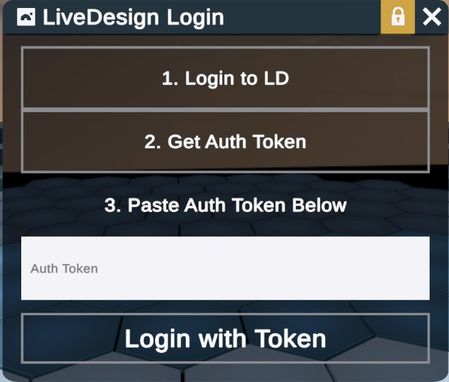
First you will need to click on "Login to LD", this will open the Nanome web browser. Please login in LiveDesign using your usual credentials.
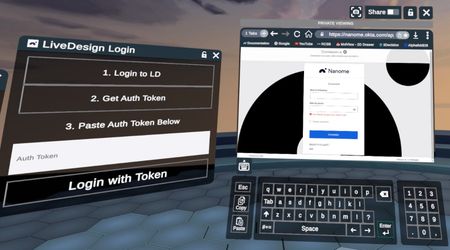
Once logged in, click the "Get Auth Token" button, this will redirect you to a web page that looks like this:
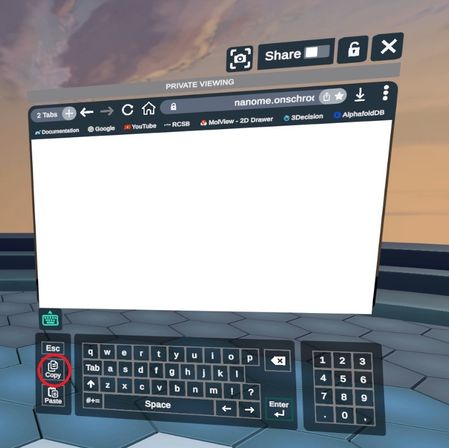
If the keyboard is not opened, click on the keyboard icon on the lower left part of the web browser, then click to select the whole token string and click "Copy" button, next to the keyboard.
Then, on the LiveDesign plugin, click on the "Auth Token" input field, just under the "Paste Auth Token Below" text. The keyboard will appear and you can use the "Paste" button to paste the authentication token.
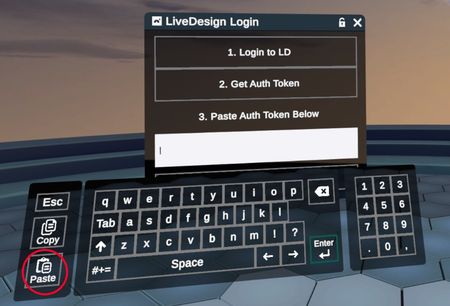
Lastly, click on "Login with Token", the plugin will update to show this menu:
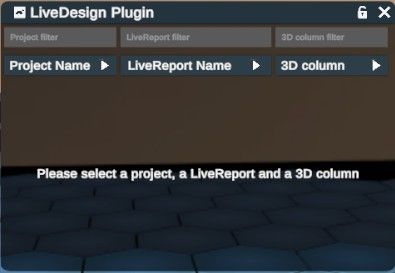
Note that this step is required once every 30 days (LiveDesign's tokens are refreshing every 30 days), most of the time, the token is re-used to avoid this step.
# Usage
This plugin allows you to load molecular data from LiveDesign or send ligand poses to a LiveReport.
# Load data from LiveDesign
To load data from LiveDesign, first select a Project name in the list of projects. Only the first 50 projects will be shown. If the wanted project is not listed, type the first letters of the project name in the "Project Name" input field, the list of projects will update with names containing the typed letters.
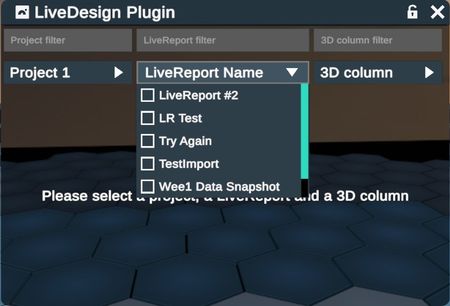
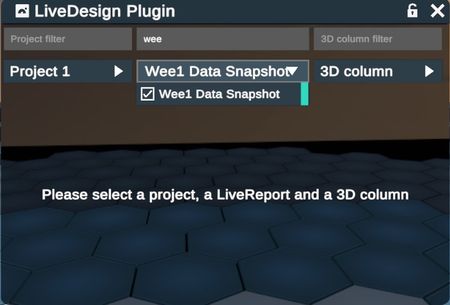
Similarly, select a LiveReport name and 3D columns. Remember that you can filter both by typing text in the input fields on top of the dropdown menus.
Example of unfiltered and filtered LiveReport names:
Now, a list of entities presented in rows should be displayed. You can hover over the compound 2D picture to get a larger preview of the image:
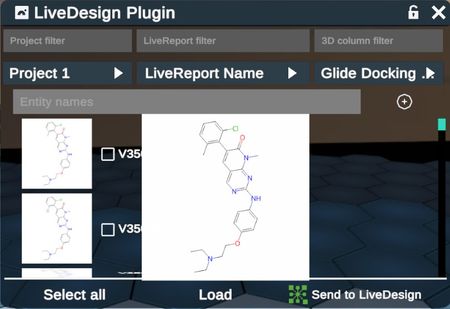
Entity names can be filtered using the "Entity names" input field to only show part of the entity list.
You can also add up to 2 descriptive column and filter entities using the added column by clicking on the "+" sign:
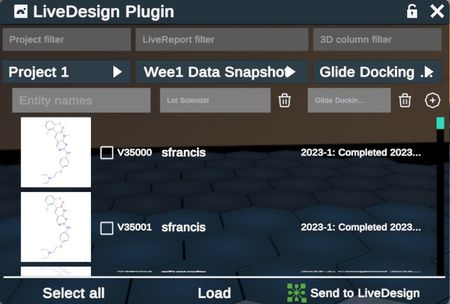
Select one of several entities and click "Load" to retrieve these 3D data and display them in Nanome:
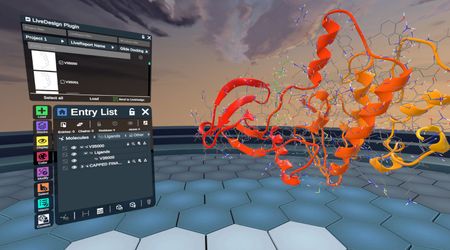
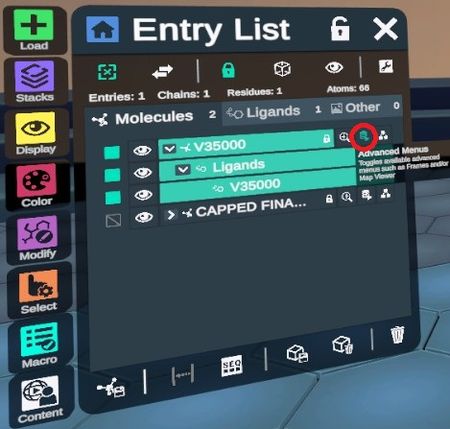
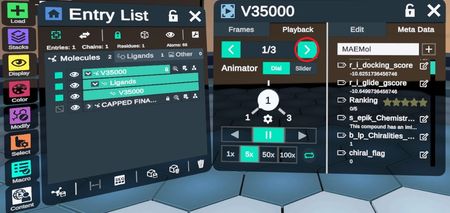
Poses of the same ligand appear as a single entry that contains several frames. You can change frames by clicking on the advanced menu here:
# Send 3D poses to LiveDesign
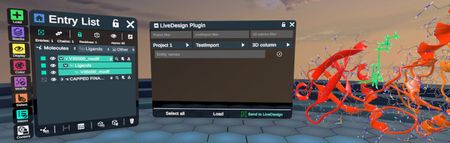
To upload to LiveDesign, first select the ligand(s) you want to send, then open the LiveDesign plugin, select the Project and the LiveReport you want to upload to. Lastly, click on the "Send to LiveDesign" button.
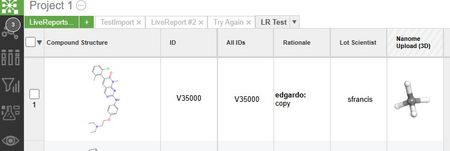
If the LiveReport already contains the uploaded ligand, it will add poses to this ligand in the "Nanome Upload" column. If not, a new row will be created and poses will be added to it in the "Nanome Upload" column.
# Experiencing issues or not seeing the plugin?
Feel free to reach out to support@nanome.ai and we'll get back to you soon.
← Docking Minimization →